

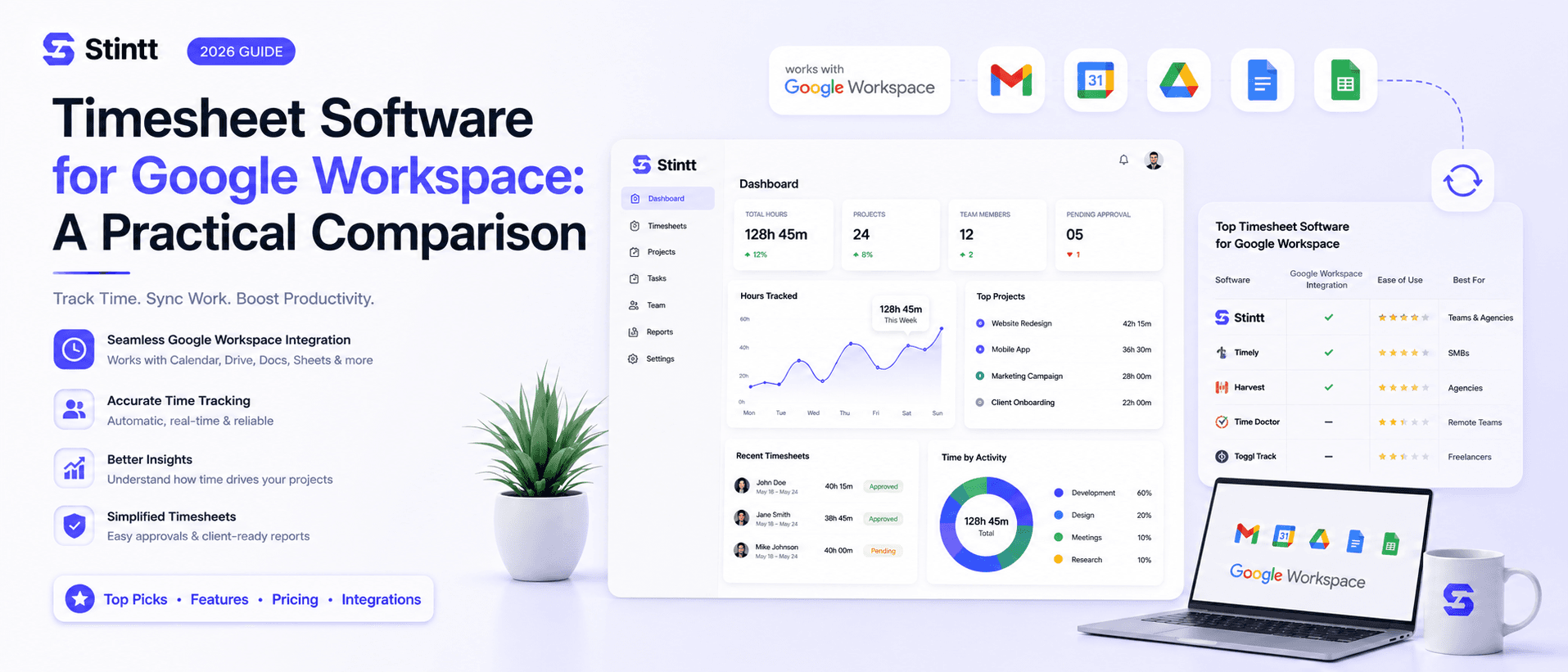
Timesheet Software for Google Workspace: A Practical Comparison
Every Workspace timesheet tool pulls hours from one of three places: a timer you remember to start, calendar events you label by hand, or events software drafts for you. This hands-on comparison of TrackingTime, TimeNavi, Clockify, and Stintt starts with the tracking model — because that, not the feature list, decides how much work your team does every week to keep the data true.
Timesheet Software for Google Workspace: A Practical Comparison
Pick the tracking model before you pick the tool. Every piece of timesheet software for Google Workspace pulls hours from one of three places: a timer someone remembers to start, calendar events someone labels by hand, or calendar events that software drafts into a timesheet for review. Decide which of those matches how your team actually works, and the shortlist gets short fast.
I run a small agency on Google Workspace and we've lived through all three models. This comparison covers a representative tool for each: TrackingTime for manual timers, TimeNavi and Clockify for calendar-linked tracking, and Stintt (our product) for calendar-native drafting with a human approval step. I'll tell you where each one genuinely wins — including where ours doesn't.
Start with the tracking model, not the feature list
Feature pages all promise the same outcome: accurate hours, less admin. The honest difference between tools is where the hours come from, because that decides how much work your team does every week to keep the data true.
Here's the test I'd run before any demo. Open last week in your own Google Calendar and count what fraction of your working hours already exist as events — client calls, internal meetings, any focus blocks you plan. If it's most of your week, calendar-based tracking hands you the bulk of your timesheet with no behavior change. If your calendar is mostly empty and the real work happens in untracked bursts, a calendar tool will draft thin timesheets and a timer might serve you better. We compared the two approaches in calendar-based vs manual time tracking if you want the full argument.
One more thing before the tools: the cost of getting this wrong is rarely the subscription. Say a 10-person agency bills at $120 an hour and each person loses 15 minutes of unrecorded work a day — a forgotten call, an untimed review. That's 2.5 team-hours a day, 12.5 a week, roughly 650 hours a year. At that rate it's $78,000 in work you did but never invoiced. Run the same math with your own headcount and rate; it's usually the number that ends the "we'll just be more careful" conversation.
Manual-start timers: TrackingTime

TrackingTime is the cleanest example of the timer model done Workspace-natively. Its browser extension puts a timer button directly inside Gmail, Google Calendar, Docs, Sheets, and Slides, so you can start tracking from the document or email you're already in. Its free tier covers unlimited users (some integrations and reporting sit on paid tiers) and bundles time tracking with light project management — real value for a freelancer or a two-person studio.
The strength of a timer is precision in the moment. When you remember to press start, the entry is exact to the minute, which matters if you bill short tasks or need to prove effort on granular work.
The weakness is that the whole system rests on the pressing. Nobody starts a timer for the client call that ran long, the Slack thread that turned into an hour of scoping, or the third context switch of the morning. Those minutes become Friday guesswork, and guesswork rounds down. Timer vendors know this, which is why most — TrackingTime included — encourage pairing timers with disciplined time blocking in your calendar. At that point you're maintaining two systems to produce one timesheet.
Pick a timer tool if you're a team of one to three, you bill fine-grained tasks, and you already have the discipline habit. We wrote up how the timer model compares with calendar drafting in a separate Stintt-vs-Toggl breakdown.
Calendar-linked tracking: TimeNavi and Clockify
This is the middle model: the tool reads your Google Calendar, but a human still does the labeling and conversion.
TimeNavi lives in a sidebar inside Google Calendar itself. You define rules based on event attributes you already use — titles, colors, labels, or attendees — and it totals time per project or client and exports to Excel or Google Sheets. For a solo consultant who already color-codes client work, it turns an existing habit into a timesheet with almost no new behavior. The catch is the rules only work as well as your naming discipline, and the free tier is narrow enough to treat as a trial.
Clockify approaches the same model from a general-purpose tracker. You connect Google Calendar to its calendar view, then click an event to start a timer or copy the event into a time entry. Its famous advantage is the free plan with unlimited users, which makes it the easy answer when budget is the binding constraint. Two things to know first: converting events is a per-event action rather than an automatic draft, and the workflow pieces an agency actually needs for billing — approval and invoicing — sit on paid tiers. All-day events also don't come through to the calendar view, so leave days and offsites need manual handling.
The trade-off of the whole category: calendar-linked tools swap "remember to start the timer" for "maintain the labeling convention and do the conversion clicks." That's a better deal for most office teams, since the calendar is at least a durable record. But the tool is passive. If someone's event titles drift, or a week goes unconverted, the gap only surfaces when the invoice looks light.
Pick a calendar-linked tool if your calendar hygiene is already good and you want cheap, transparent tracking: TimeNavi for calendar-first solo consultants, Clockify for larger teams that need free above all else.
Calendar-native drafting with human approval: Stintt
The third model removes the labeling and conversion work too. Stintt connects to Google Calendar through read-only OAuth — the calendar.readonly scope — which means it can see events but can't edit or delete anything. You can check that yourself on the consent screen; Google documents exactly what each Calendar API scope permits.
From there it drafts the timesheet for you. Events are pulled in and AI-categorized into meetings, focus work, admin, breaks, and time off, and work gets attributed to projects through simple rules like a #client tag in the event title. It syncs up to 18 months of history, so the first thing you see isn't an empty dashboard but your team's actual recent months, drafted. Work that never made it onto a calendar still gets captured: someone drops a quick standup note in chat ("finished the Acme homepage revisions, ~3 hrs") and it lands as a drafted entry too.
The part I'd argue matters most for an agency is what happens next: nothing is billed automatically. Each person reviews their drafted week, and a manager approves or discards entries before they count. There's an auto-approve option once you trust the drafts, but the default is a human sign-off — an AI guess about your billable hours should never reach a client invoice unreviewed. Approved hours then flow into built-in invoicing (PDF export and a GST-compliant template) or out as Excel, CSV, or PDF, with the .xlsx export giving each person their own tab. On the Workspace plan, managers also get utilization and capacity views, AI capacity briefings that flag burnout risk, and meeting-cost analysis.
Stintt deliberately skips location tracking, screenshots, and keystroke or app monitoring. For office and remote knowledge teams we consider that a feature, not a gap — it's why rollouts don't turn into a fight with the team; the security page spells out the stance. The honest disqualifier is different: it's the wrong choice if your team's work genuinely doesn't live in calendars or chat, because then there's nothing good to draft from.
There's a free plan (one Google Calendar, exports covering up to 7 days of events, AI categorization for 50 events a month); details on the paid tiers are on the pricing page. If you want the walkthrough, we've written a step-by-step on auto-filling a timesheet from Google Calendar.
Pick calendar-native drafting if you're a Google Workspace agency or services firm of roughly 5 to 25 people billing by the hour or project, and you want timesheets that arrive drafted instead of demanded.
The four tools side by side

| Tool | Tracking model | Free tier | Standout | Best fit |
|---|---|---|---|---|
| TrackingTime | Manual timers inside Workspace apps | Free, unlimited users | Timer button in Gmail, Calendar, Docs, Sheets | Freelancers and 2–3 person teams billing granular tasks |
| TimeNavi | Rules applied to your calendar events | Limited free tier | Time totals in a Calendar sidebar; Excel/Sheets export | Solo consultants who already label their calendar |
| Clockify | Timers, plus events copied into entries | Free with unlimited users | Generous free plan; approvals and invoicing on paid tiers | Budget-first teams of any size |
| Stintt | AI-drafted from calendar and chat, human-approved | Free plan, 1 calendar | Approval loop plus invoicing from approved hours; no surveillance | Google Workspace agencies of 5–25 billing hourly |
Five checks before you roll anything out
These are the checks I'd run as the Workspace admin, in order, regardless of which tool you're leaning toward.
- Read the OAuth consent screen, not the marketing page. A timesheet tool needs to read your calendar; it does not need to write to it. Read-only scopes mean a bug or breach at the vendor can't touch your events. If a tool asks for edit access, ask why.
- Ask what happens to event data. Does the vendor store event contents, and for how long? Get the answer in writing before connecting company calendars. We published our own answer in why we don't store your events — a fair template for the questions to ask any vendor.
- Decide who signs off before hours reach an invoice. A timesheet nobody reviews is just a log. Whatever tool you choose, the workflow should have an explicit approve step between "tracked" and "billed," and you should know whose name is on it.
- Test the export with the person who consumes it. Send your bookkeeper or client a sample export in week one. Column layout and date formats cause more real-world friction than any feature gap.
- Skip surveillance features for office teams. If a vendor's pitch leans on screenshots, activity scores, or GPS, that's monitoring software for a verification problem you probably don't have, and your best people will read it as distrust.
The short version
If you're one to three people billing precise, task-level work, take TrackingTime's free tier. If you already run your life from a color-coded calendar, TimeNavi turns that habit into a timesheet. If free-for-everyone is the requirement, Clockify is the defensible default — with the caveat that approvals and invoicing cost money and event conversion stays manual.
And if you're an agency on Google Workspace where the week already lives in Calendar and chat, the drafting model is worth an afternoon of your skepticism. Connect one calendar to Stintt free and look at the drafted timesheet it produces from your own last few weeks. The draft either matches how your team works or it doesn't — and you'll know without changing anyone's habits first.
- See how Stintt builds automatic timesheets from Google Calendar
- Set up the Google Calendar timesheet integration
- Try the free timesheet calculator
- Compare plans on Stintt pricing
Related articles
10 Best Timesheet Tools for Remote Teams in 2026
A practical comparison of 10 timesheet tools for distributed teams. We cover pricing, key features, and which tool fits which workflow.
ClickUp Time Tracking to Excel: Step-by-Step Guide
ClickUp has solid built-in time tracking, but exporting it to Excel for clients or management is clunky. Here are three ways to get your ClickUp hours into a proper spreadsheet.
How to Create Timesheets from Asana Tasks
Asana doesn't have native timesheet export. Here's how to turn your Asana tasks and time tracking into professional timesheets for clients and managers.